Activate Plugins License
Single Licenses
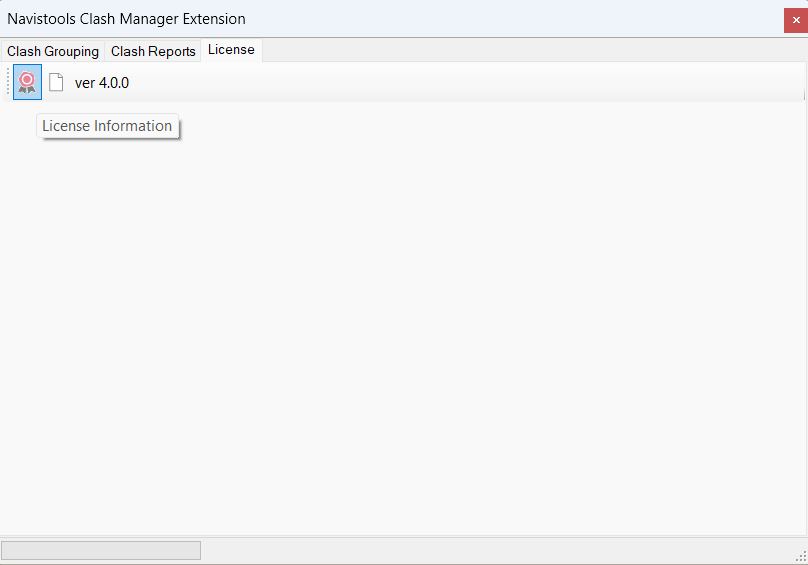
If you find our plugins useful, you can purchase the permanent license with PayPal or Stripe buttons in Purchase Online page. After purchased you will get the Activation Key by email. To activate the plugin, please press License Information button. Button can be found from plugins License tab.
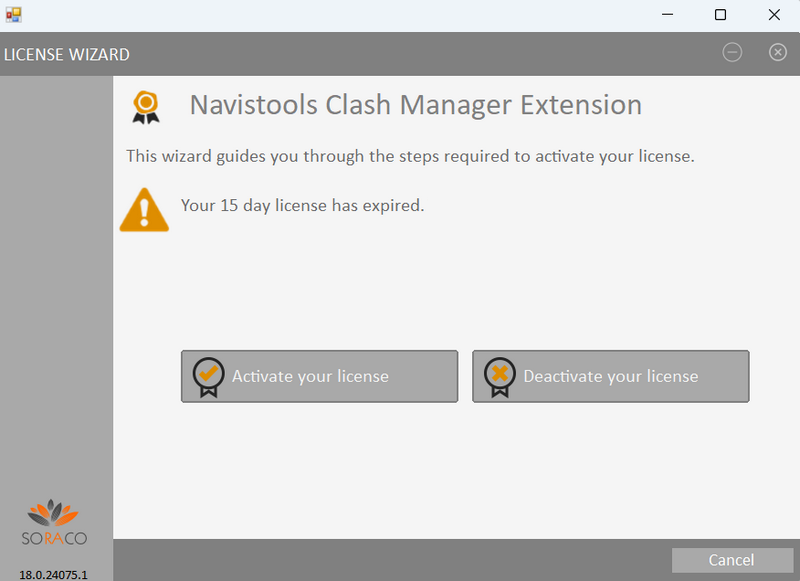
Button opens the license wizard which is used to activate purchased license. Please press Activate your license button
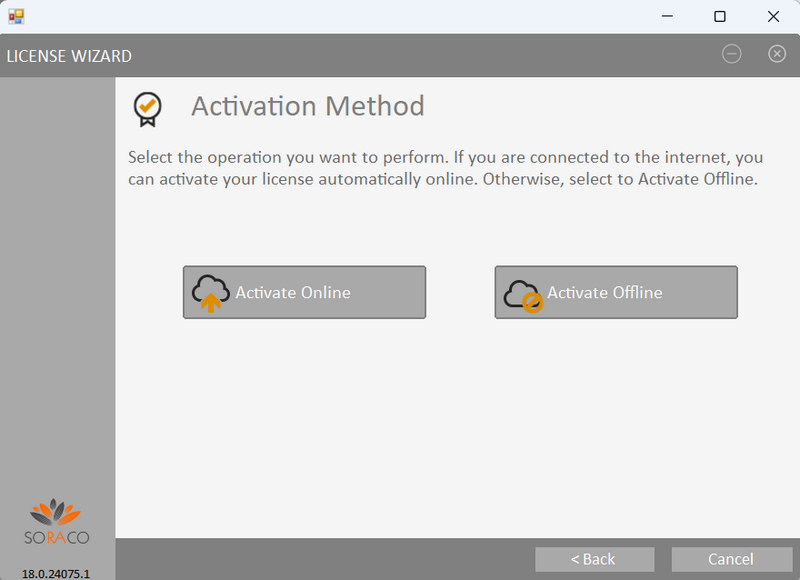
After that please press Activate Online button
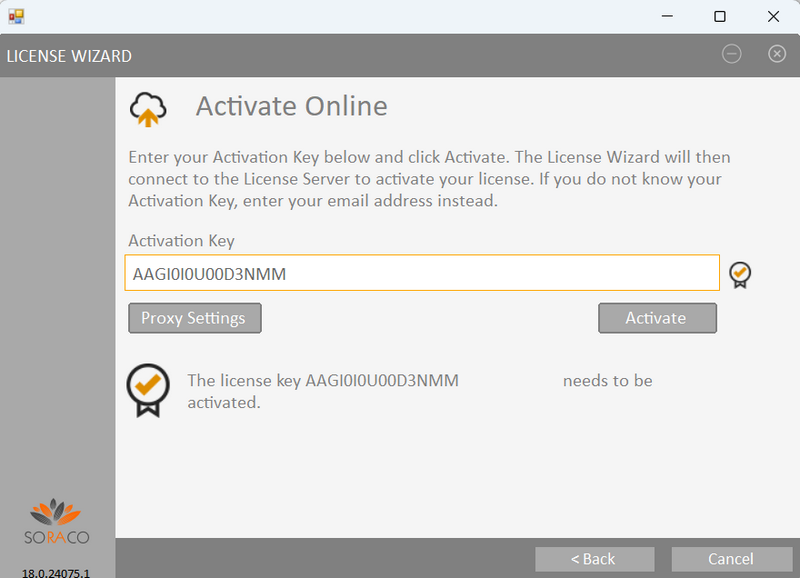
Copy/paste the Activation Key to the Activation Key textbox and press Activate button. After that the permanent license will be activated online.
Cloud based Floating Licenses
Cloud-based floating licenses are activated same way. When the plugin is started 1st time, each user of the floating license enters same Activation Key into License Wizard. When the plugin is used, it reserves a license from the pool (checkout). If the number of floating licenses is exceeded, the extension will not start. The user can return the license back to pool (check-in) by closing the Autodesk software.
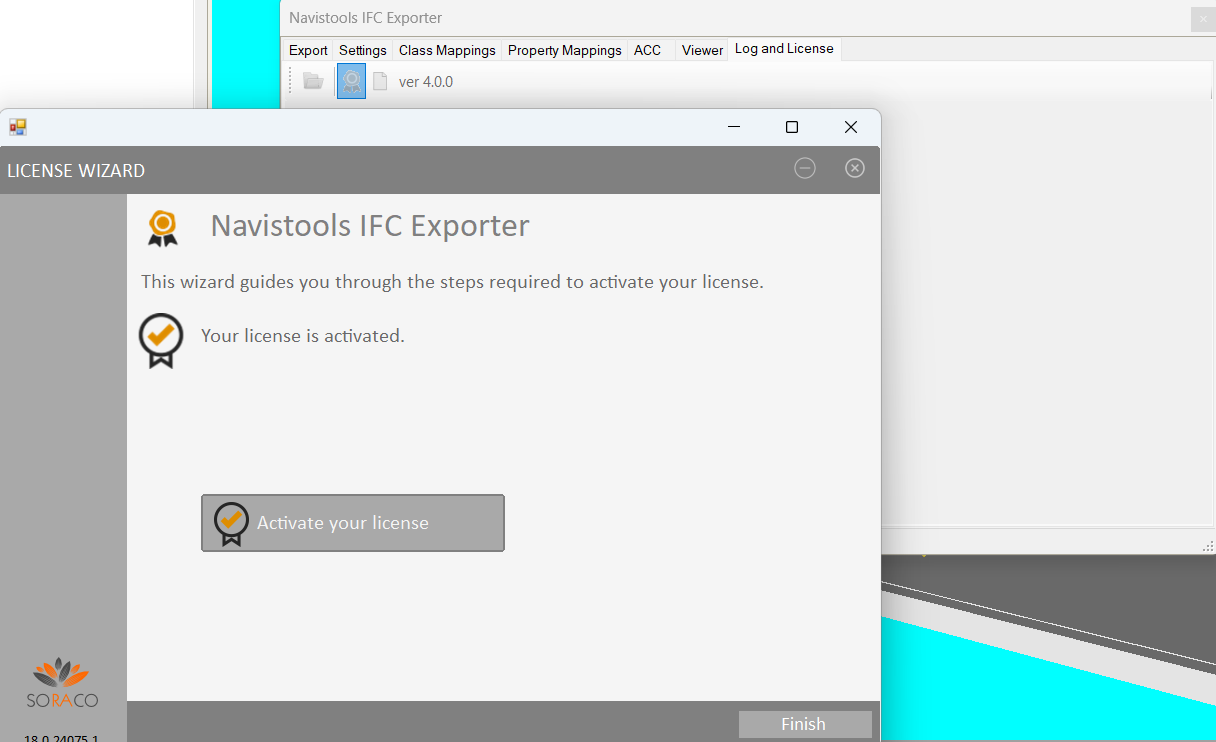
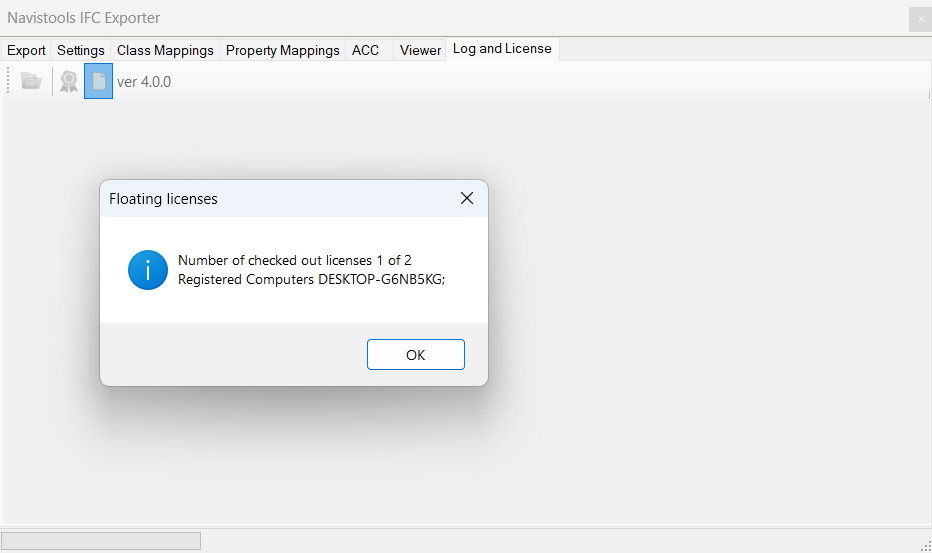
All floating licenses starts with “R”. You can see license information also from the plugin’s Log and License tab.
User portal
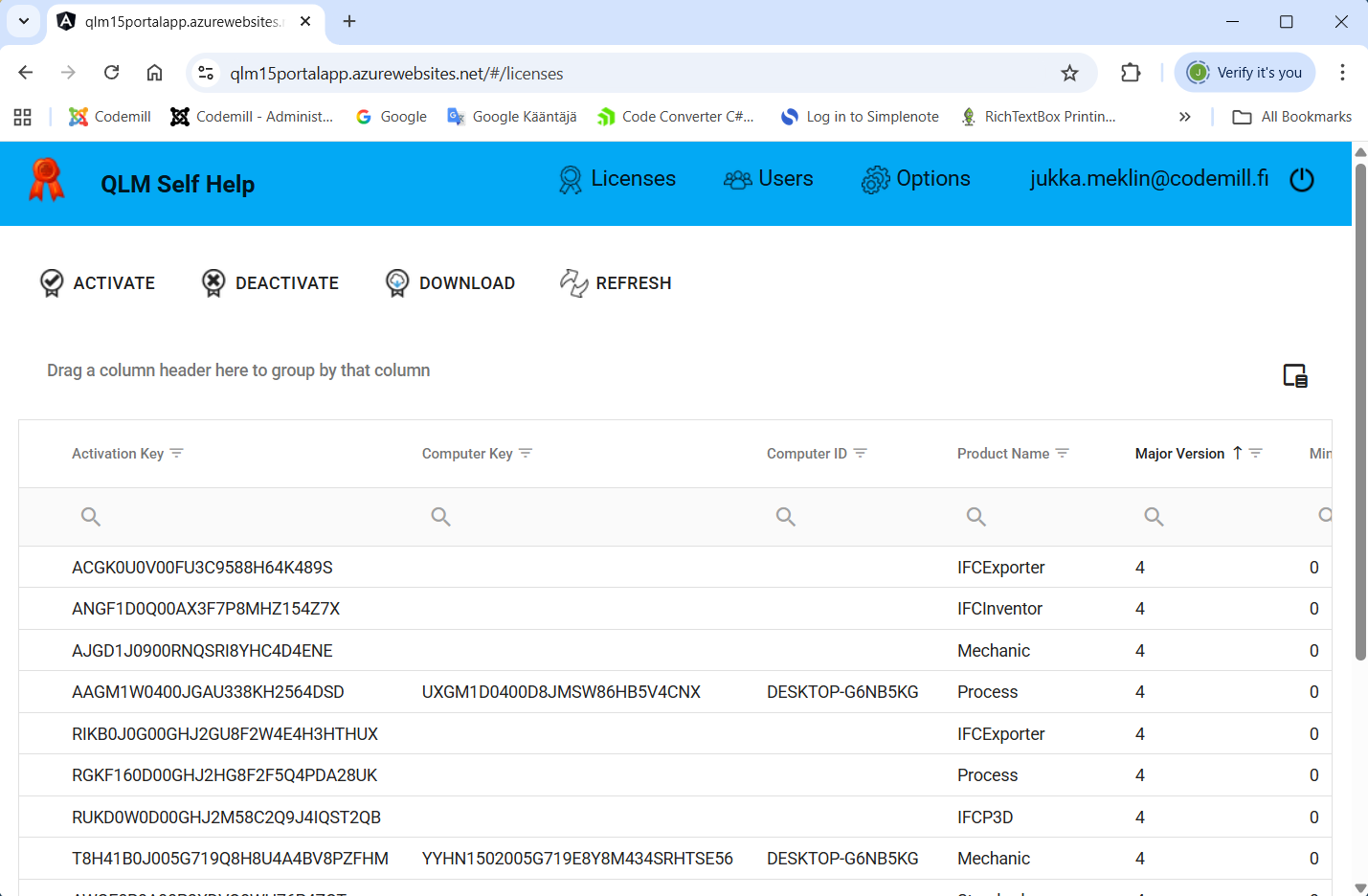
When using cloud-based floating licenses, there may be situations where automatic checkout/checkin functions are not optimal. For example, if a computer has reserved a license but has not returned it because the plugin was left open. This prevents others from using the floating license. User portal is a supplementary web-based interface where users can manage their floating licenses. It is free and created by request.